
Every paid TurfNet account is entitled to add two additional login accounts at no extra charge. Suggested, for a golf course superintendent, add your assistant and equipment manager, or first and second assistants
Before You Begin
You can add sub-accounts in two ways:
- Method 1: Add an existing TurfNet user or create a new account directly
- Method 2: Share a unique signup link that automatically connects new users to your account
Method 1: Add Sub-Accounts Directly
1. Access Your Profile
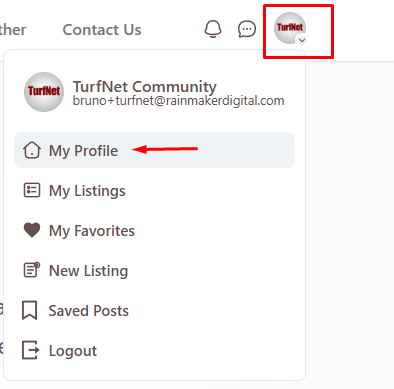
Sign in and click your profile icon (top right), then select My Profile.
2. Navigate to Subscriptions
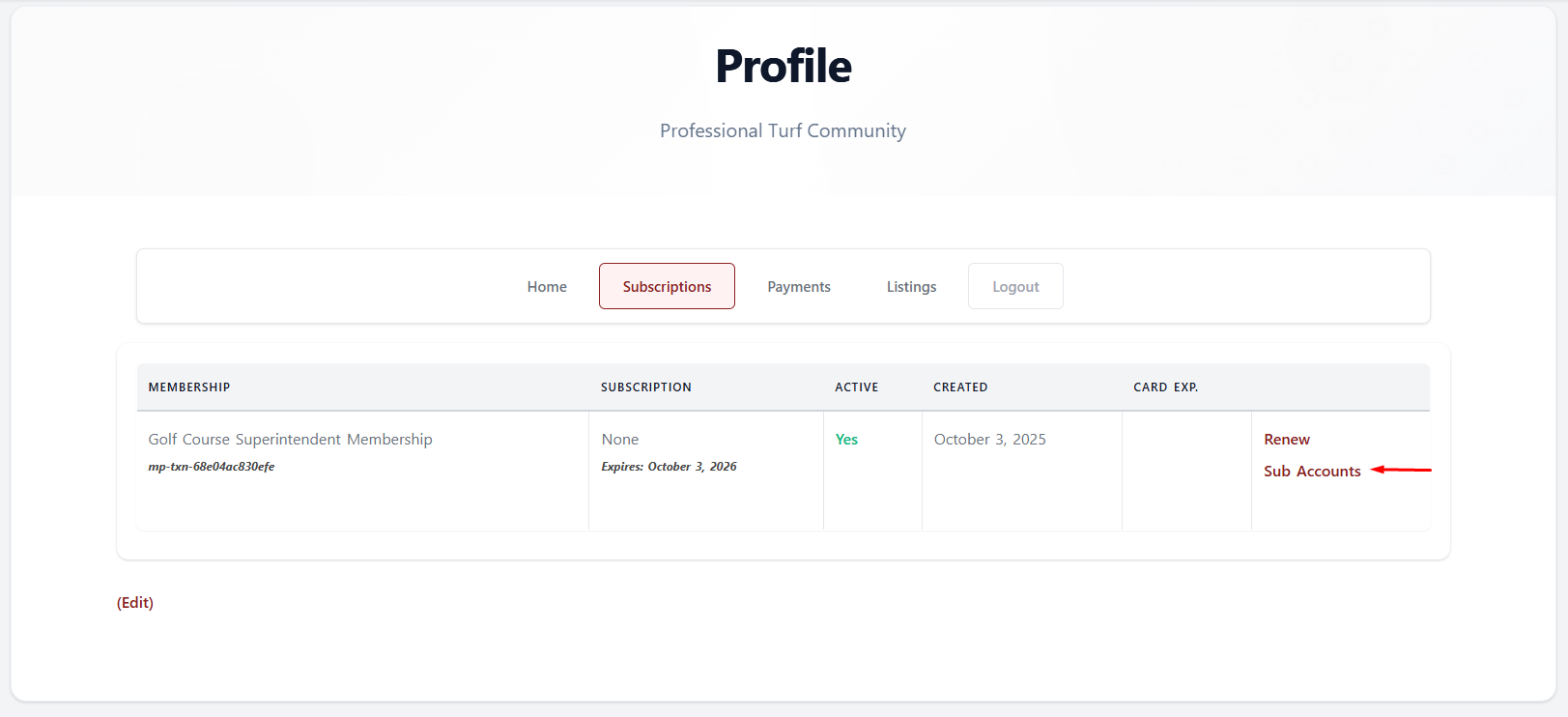
Click the Subscriptions tab on your profile page.
3. Manage Sub-Accounts
Find your active membership in the list and click Sub Accounts.
4. Add a Sub-Account
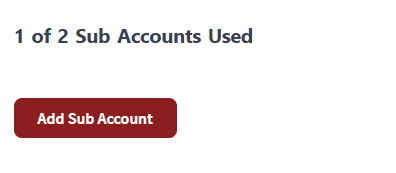
Click the Add Sub Account button.
5. Choose Your Method
You can either:
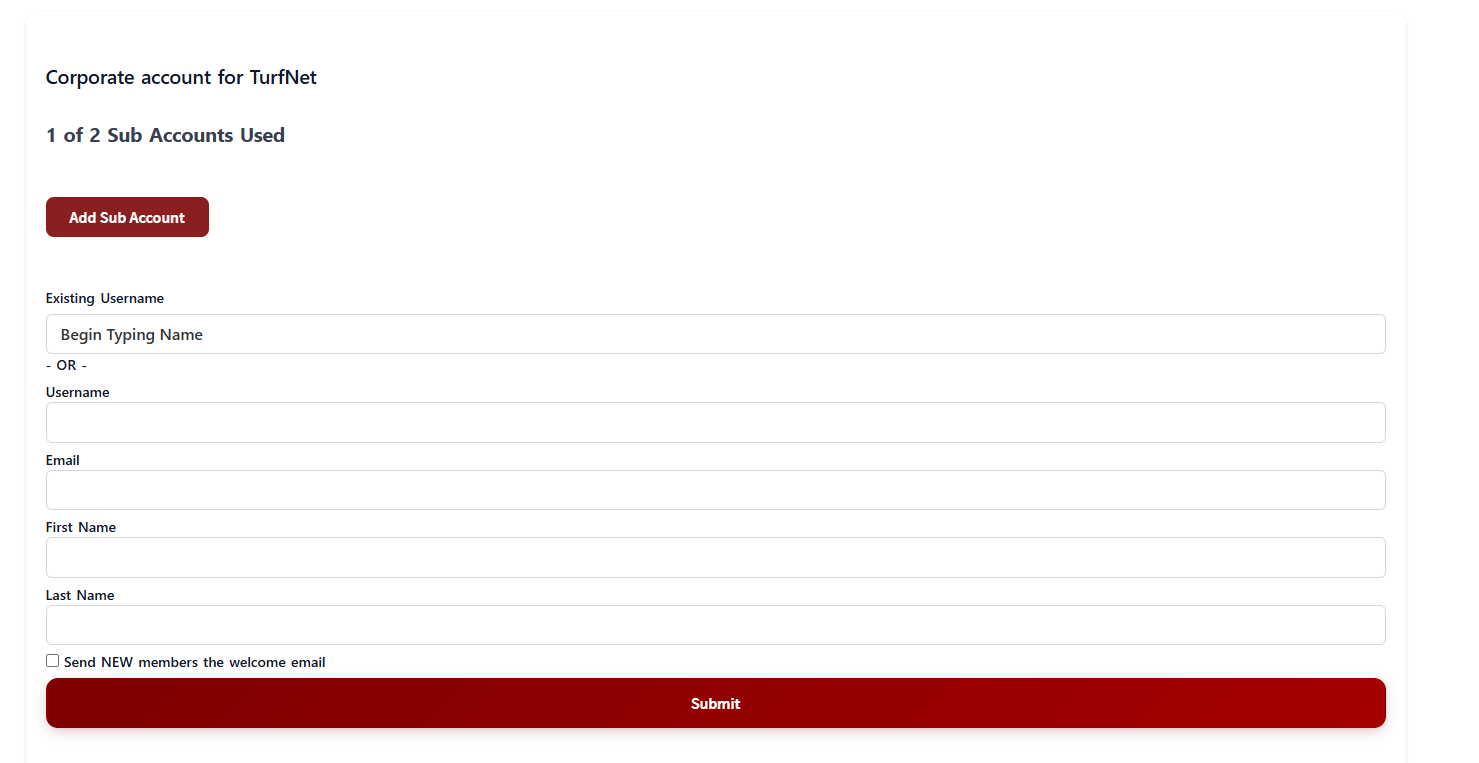
Option A: Add an existing TurfNet user
- Start typing their name in the “Existing Username” field
- Select them from the dropdown
Option B: Create a new account
- Fill in the following fields:
- Username (they’ll use this to log in)
- First Name
- Last Name
- Check “Send NEW members the welcome email” if you want them to receive setup instructions
- Click Submit
Method 2: Share Your Signup URL
This method is perfect for sending invitations via email or when you want team members to set up their own accounts.
1. Get Your Signup URL
Follow Steps 1-3 from Method 1, then:
Find the Signup URL field:
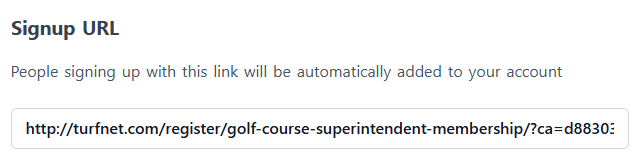
2. Copy and Share
Copy the unique URL displayed:
Important: People signing up with this link will be automatically added to your account as sub-users.
3. Send to Team Members
Share this link via email, text, or any other method. When they complete registration using this link, they’ll automatically be connected to your account with full member privileges.
What Sub-Accounts Include
Sub-account users receive the same membership privileges as the primary account holder:
- Full access to member-only forums
- Job board posting and resume access
- Equipment marketplace privileges
- Educational content and webinars
- Industry news, videos, and podcasts
Managing Your Sub-Accounts
You can view, edit, or remove sub-accounts at any time:
- Go to Profile → Subscriptions
- Click Sub Accounts next to your membership
- Manage existing users or add new ones
Quick Tips:
- Sub-accounts are included with your paid membership at no extra charge
- Each sub-account has the same access level as the primary account
- The Signup URL method is fastest when onboarding multiple team members
- Sub-accounts can be added or removed at any time
Need Help?
If you encounter any issues, please contact us!
